Idealpos supports the sale, redemption, cancellation and enquiry of Vii Gift Cards.
Refer to the steps below for details about utilising each of these functions.
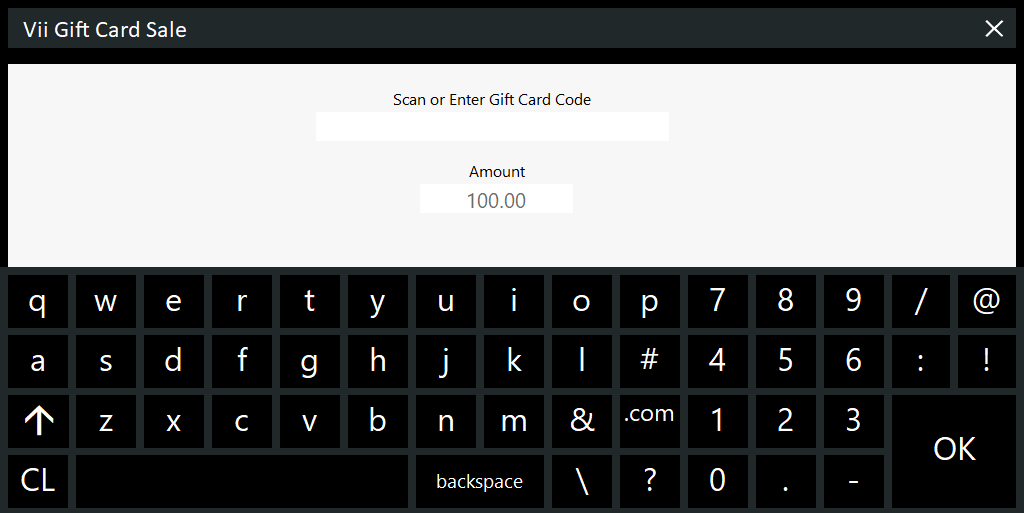
To sell a Vii Gift Card, scan or enter the Vii Gift Card Scan Code.
Note that this is the Scan Code for the Gift Card, not the unique Gift Card Number.
The Vii Gift Card Sale window will be displayed:
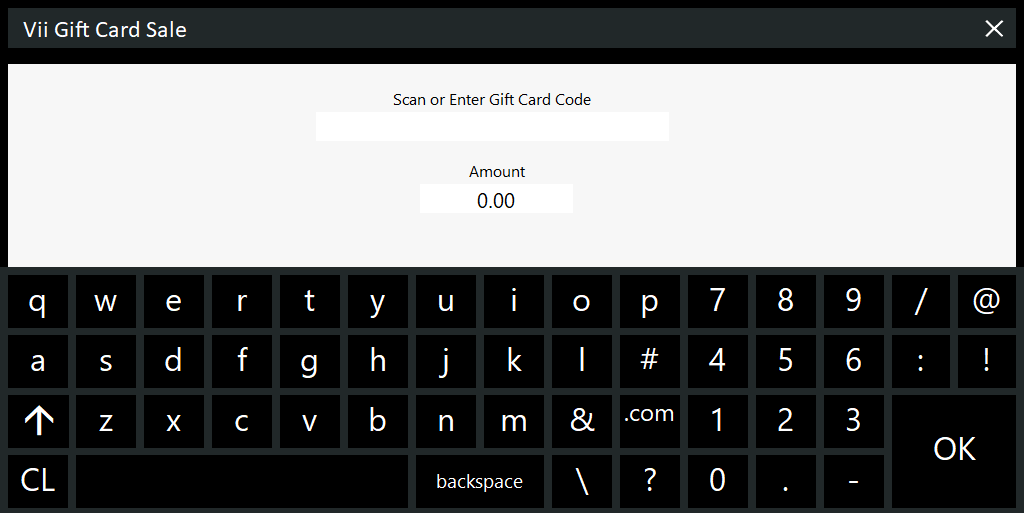
If the Scan Code for a Gift Card with a variable amount was scanned, the Amount field will be 0.00.
Enter the required value into the Amount field.
Press OK to add the Gift Card to the sale.
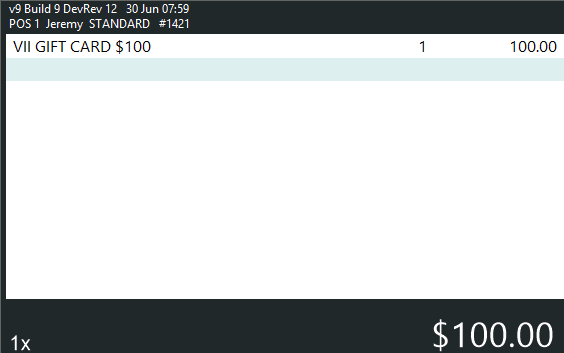
The Vii Gift Card Stock Item will appear in the sale window.
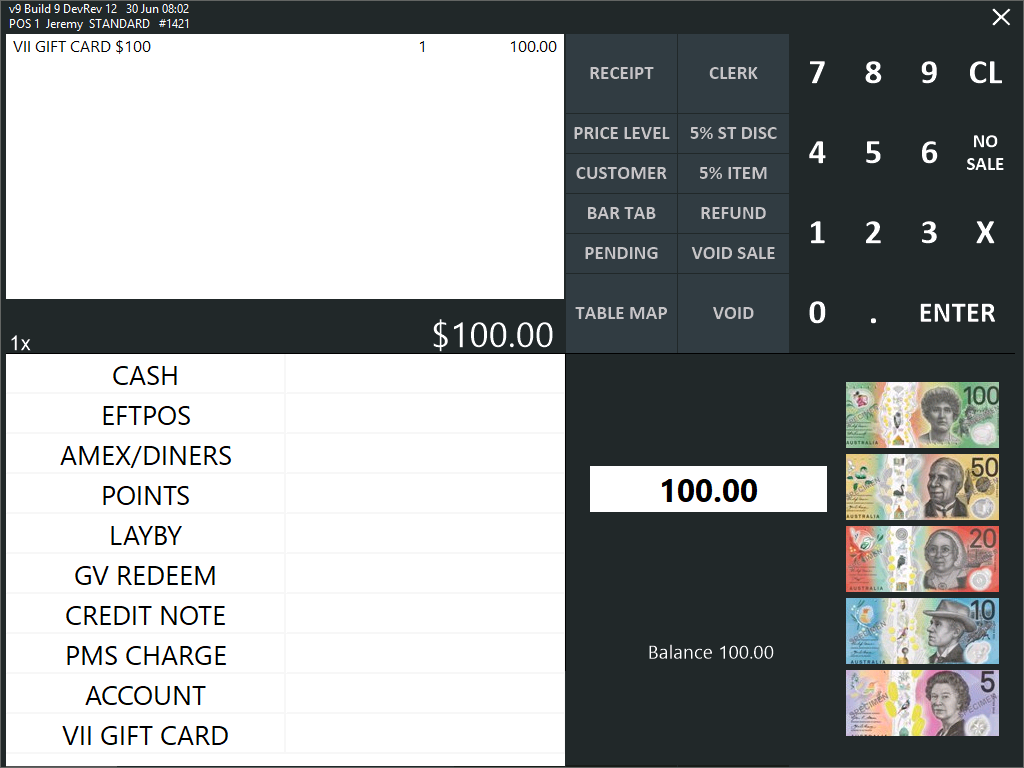
Add other Stock Items if required, then press the ENTER button to go to the Tender Screen.
Select the required Tender to tender the sale.
After tendering the sale, a prompt will appear with the Card Number, Amount and the Expiry Date.
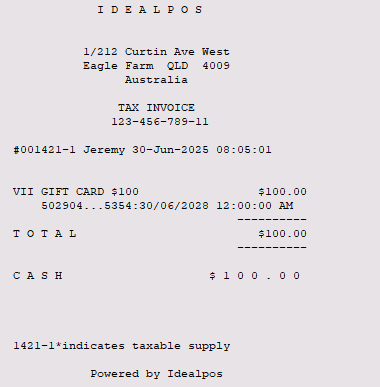
The customer receipt is also printed which shows the Gift Card value, masked Card Number and Expiry Date.
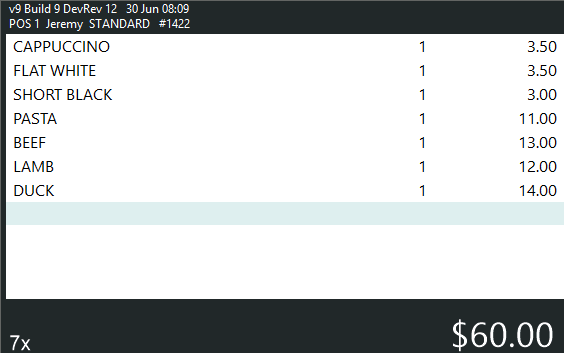
To redeem value from a Vii Gift Card, add the required items to a sale.
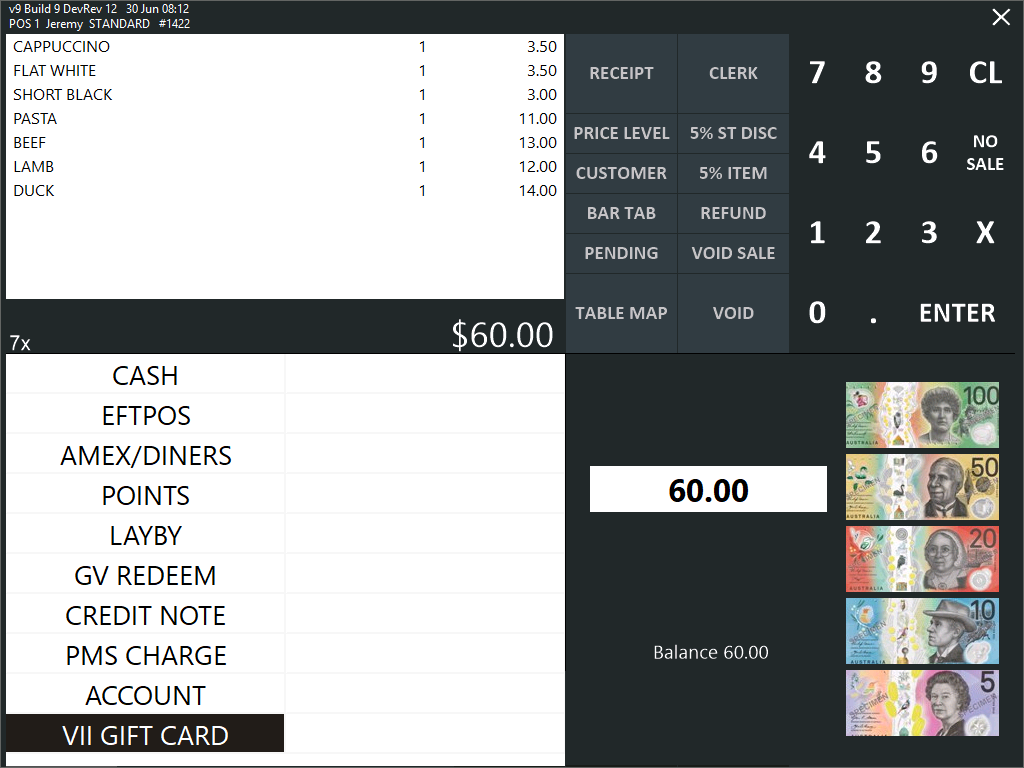
Press the ENTER button to go to the Tender screen.
Within the Tender screen, enter the value to redeem from the Gift Card, then press the VII GIFT CARD Tender button.
If the Vii Gift Card has sufficient funds to do so and if the customer wants to pay for the entire sale with the Gift Card, leave the default full sale amount entered as the tender amount and press the VII GIFT CARD button.
Alternatively, the value tendered can be split between the Vii Gift Card and other tenders (e.g. CASH, EFTPOS, etc.); enter the value to redeem from the Gift Card then press the VII GIFT CARD button.
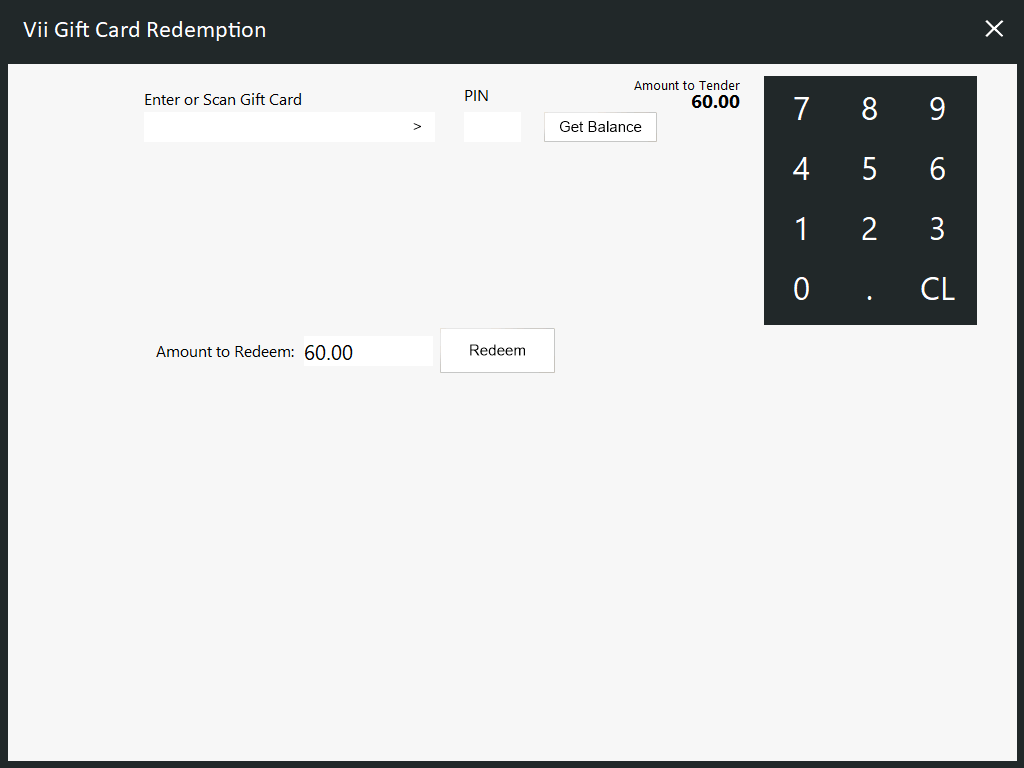
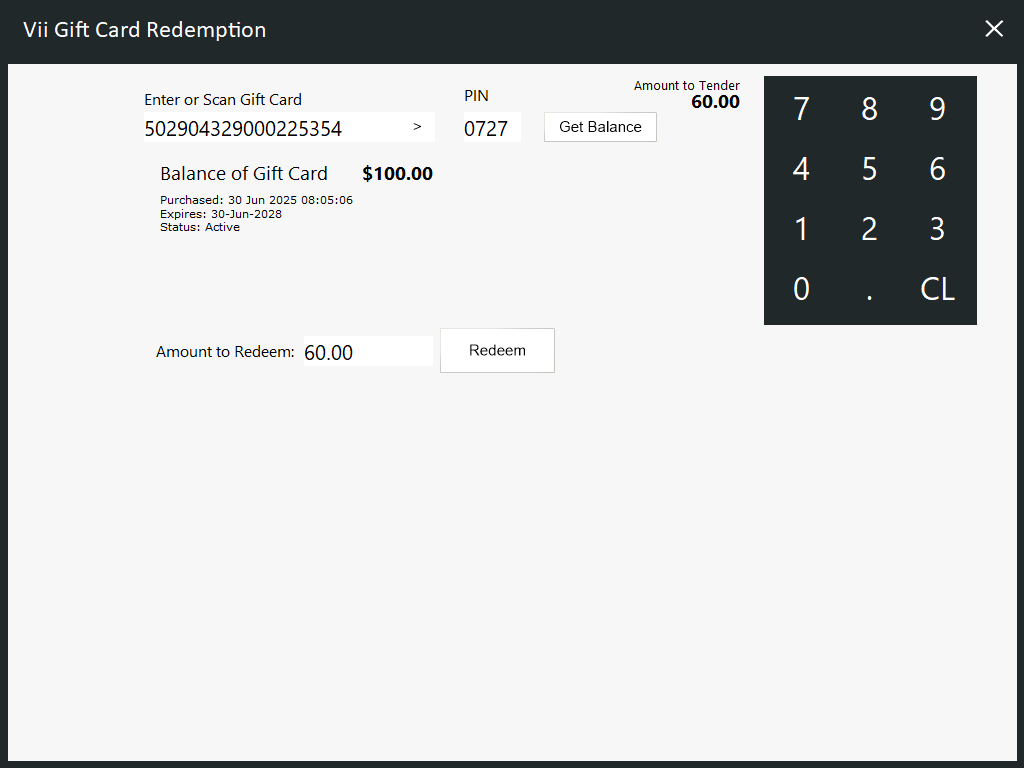
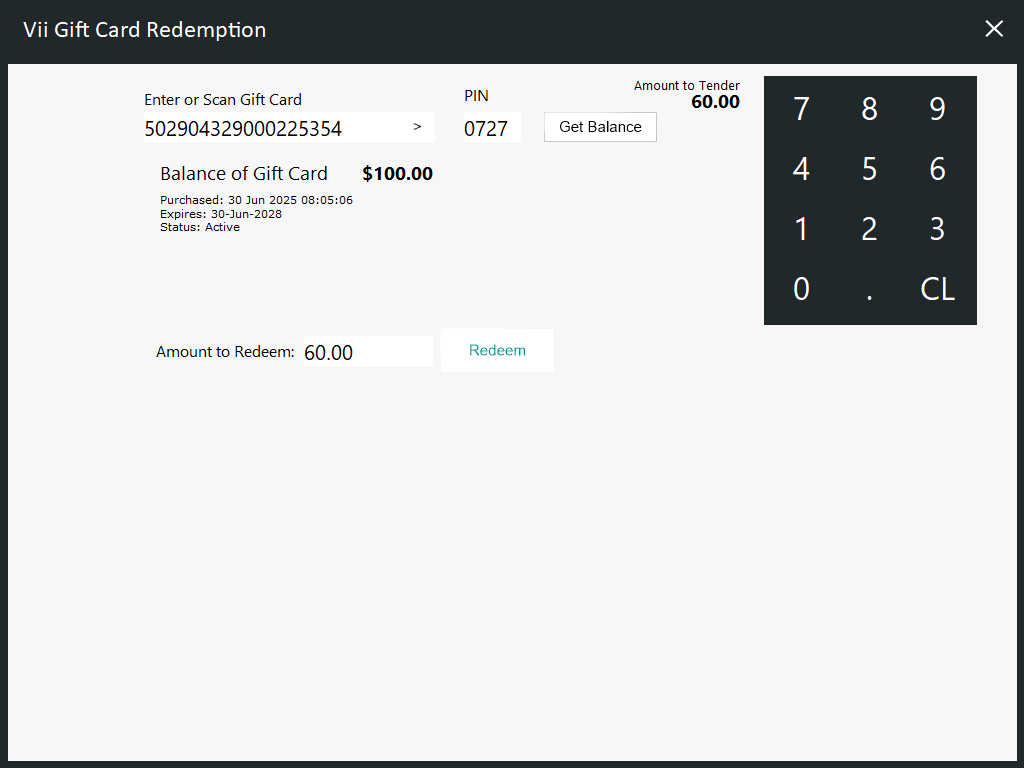
The Vii Gift Card Redemption window will be displayed:
After entering/scanning the Gift Card, PIN and pressing the "Get Balance" button, the current balance available on the Gift Card will be displayed.
The entered amount is redeemed from the Gift Card.
A prompt will be displayed that confirms the redemption was successful.
The prompt will also display the balance remaining on the Vii Gift Card.
Press OK to close the prompt.
If the Gift Card was used to tender the entire sale value, the sale will be finalised.
If the Gift Card was used to tender only part of the sale, the Tender screen will reappear after the redemption; tender the remainder of the sale with other tender types to finalise the sale.
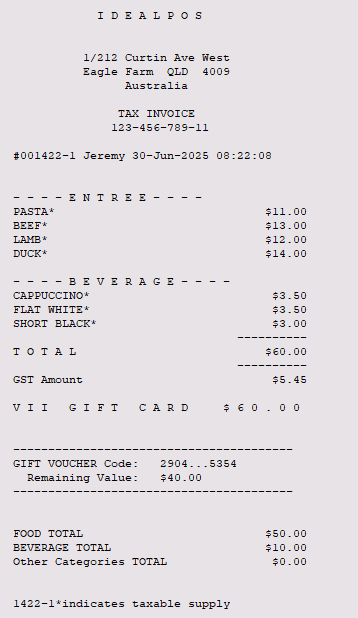
After the sale is finalised, the customer's receipt is printed.
The masked Gift Card code and the remaining value are both shown towards the bottom of the receipt.
A Vii Gift Card can be cancelled if the purchaser changes their mind and no longer requires the Gift Card.
Cancelling a Vii Gift Card will enable the value of the Gift Card to be refunded to the customer.
Note that after a Vii Gift Card is cancelled, the physical Gift Card cannot be sold again.
Note!
It is not possible to cancel a Gift Card if a portion of the Gift Card balance has been redeemed.
Refer to the Vii Gift Card Terms and Conditions.
To cancel a Gift Card, add the Gift Card to the sale by scanning the Gift Card Scan Code.
The Vii Gift Card Sale window is displayed.
If refunding a fixed value Gift Card, the amount will be pre-populated into the Amount field.
Scan or Enter the Gift Card Code
Press OK
If refunding a variable value Gift Card, the Amount field will be blank.
Scan or Enter the Gift Card Code.
Enter the original value of the Gift Card when it was originally sold.
Press OK
The Gift Card is added to the sale.
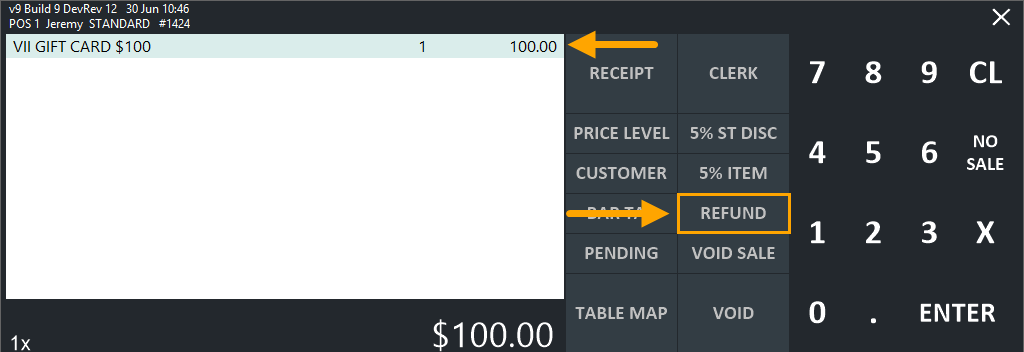
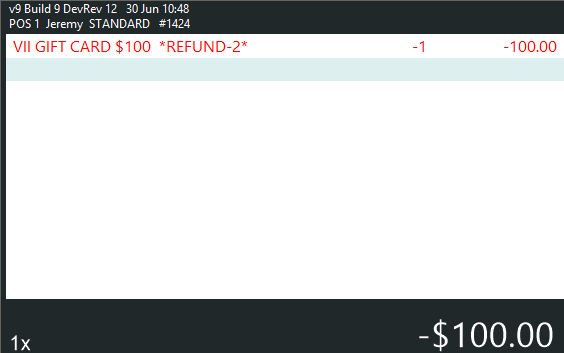
Select the Gift Card in the sale window, then press the Refund button.
Tip!
If a Refund button does not exist, it can be created by going to: Back Office > Setup > POS Screen > POS Screen Setup > Select the POS Screen Layout > Buttons.
Create a button for the Refund function so that Vii Gift Cards can be refunded.
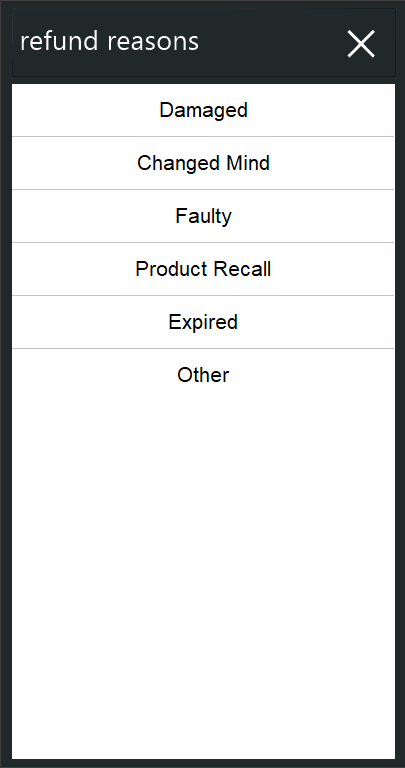
Select the reason for the refund.
The colour of the Stock Item in the sale window will change to red, and will display *REFUND-#* next to the item, where # indicates the Refund Reason Code.
Press the ENTER button to continue to the Tender screen.
If the system has been configured to allow issuing Credit Notes, a "Would you like to issue a Credit Note?" prompt will appear.
Press "No".
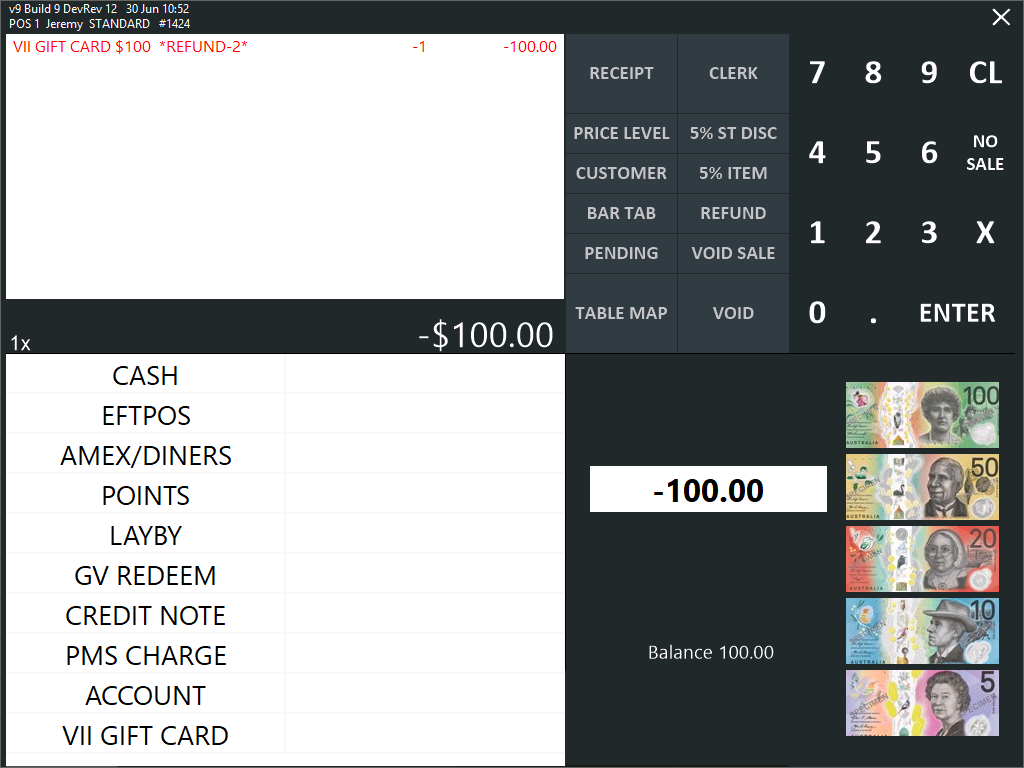
Within the Tender screen, select the Tender Type to process the refund to.
Some venues or sites have a policy to refund back to the same tender type that was originally used to purchase the item.
Select the tender as required/as per the policy of the venue/site.
A prompt similar to the following will be displayed, indicating that the card has been cancelled, along with the amount that has been cancelled.
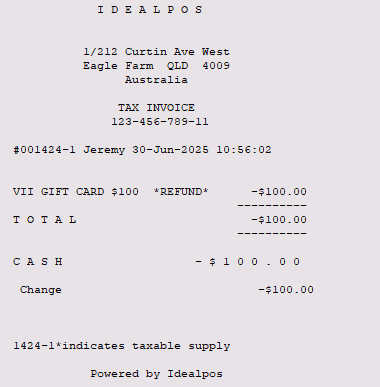
The refund is finalised and customer receipt printed.
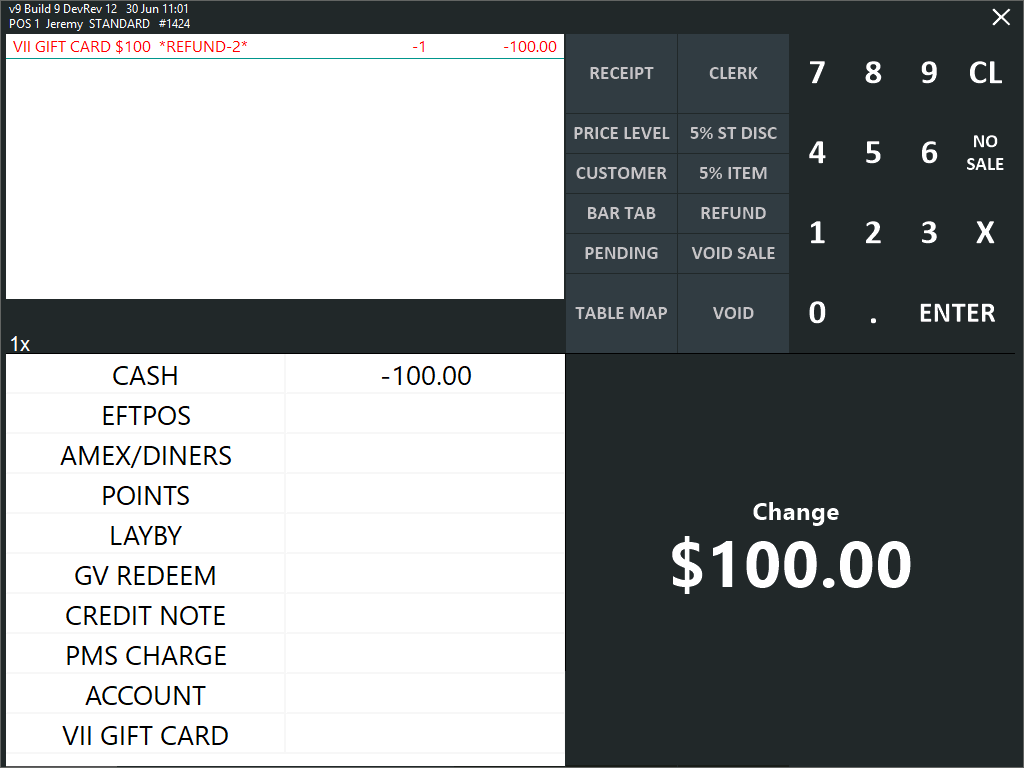
If the Cash tender is selected when refunding the Gift Card, the POS Screen will show the amount to be refunded as Change.
To clear the Tender screen and start a new sale after giving the customer their change, press anywhere on the POS Screen.
Note!
When refunding a Vii Gift Card, the current balance of the Gift Card must be equal to the balance that was initially loaded onto the Gift Card when it was originally purchased.
Attempting to refund a Gift Card that has already been partially used will trigger the following prompt:
Entering a balance that does not match the original Gift Card balance will trigger the following prompt:
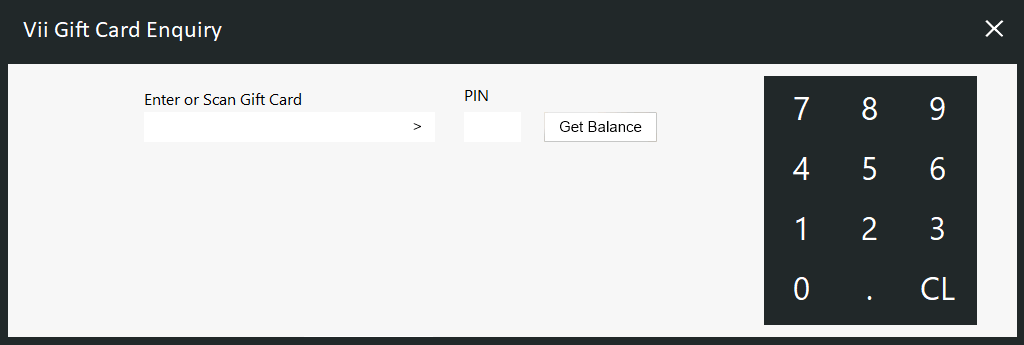
The Vii Gift Card Enquiry function can be used to check the current status of a Vii Gift Card.
To perform a Vii Gift Card Enquiry, navigate to the POS Screen tab where the Vii Gift Card Enquiry button has been created.
If a Vii Gift Card Enquiry button does not exist, refer to Create a Vii Gift Card Enquiry button within the Configuring Vii Gift Cards page.
Press the Vii Gift Card Enquiry button.
The following window will be displayed:
After entering the Gift Card number and PIN, press the "Get Balance" button.
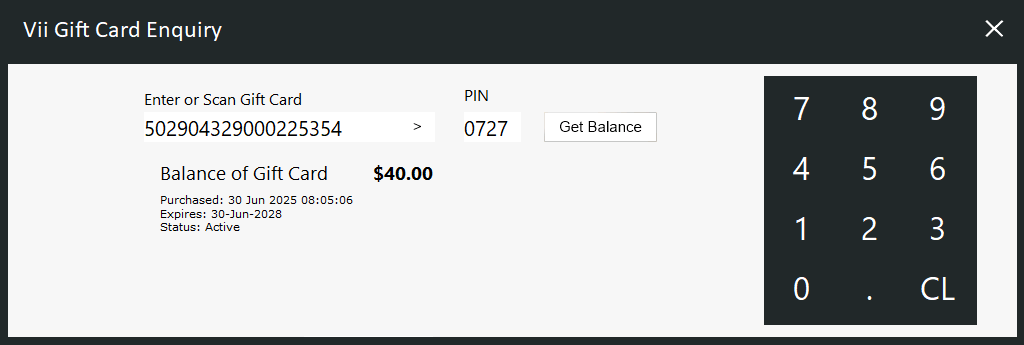
The following details will be displayed:
A variety of Gift Card responses will appear, depending on the status of the Gift Card, the Gift Card Balance and the action being taken.
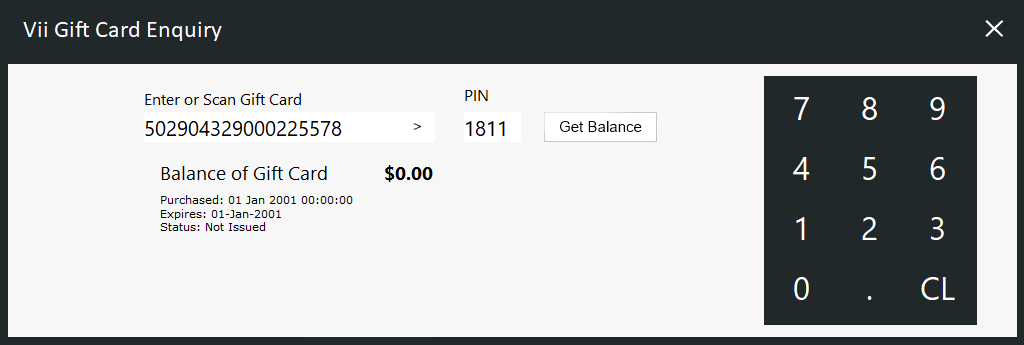
Gift Card Enquiry - Not Issued
Performing a Vii Gift Card enquiry on a Gift Card that hasn't been sold/issued will have a balance of $0.00 and a status of Not Issued.
Gift Card Enquiry - Active
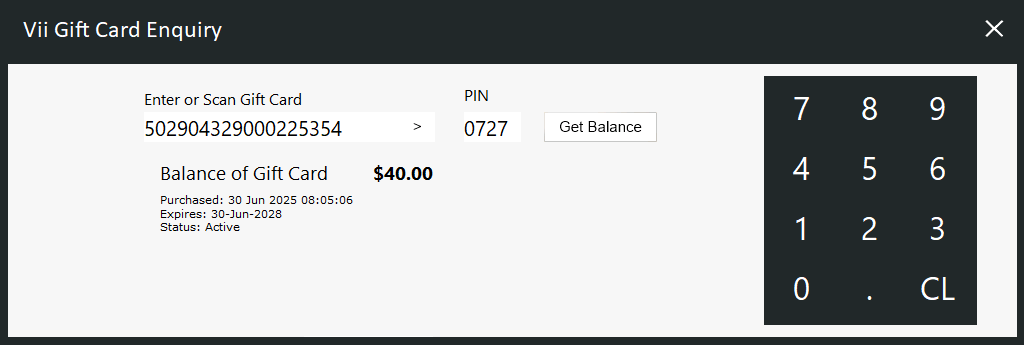
Performing a Vii Gift Card enquiry on a Gift Card that has been sold and still contains a balance will show the following details:

Gift Card Enquiry - Cancelled
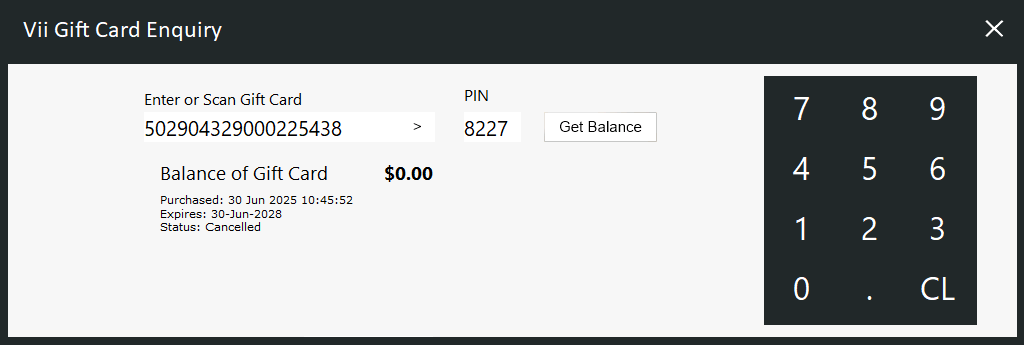
Performing a Vii Gift Card enquiry on a Gift Card that has been cancelled (e.g. refunded) will show the following details:

Gift Card Redemption - Insufficient funds (redeeming a value that is greater than the value available on the card)
If an attempt is made to redeem a value that is greater than the balance available on the Gift Card, an Insufficient Funds prompt will appear, along with the amount that is available on the Gift Card.
Gift Card Redemption - Invalid Card and Balance Status (redeeming a value from a Gift Card that has been cancelled or not issued)
If an attempt is made to redeem a Gift Card that has been cancelled or not issued, an "Invalid Card and Balance Status" prompt will appear.
Cancelling Gift Card - Amount does not match opening balance
If an attempt is made to refund a Gift Card but the amount being refunded does not match the original balance of the Gift Card, an "Amount does not match opening balance." prompt will appear.
To prevent this prompt from appearing, ensure that the correct Gift Card amount is entered (amount matches the original value that was loaded onto the card) when refunding the Gift Card.
Cancelling Gift Card - Refund not allowed
If an attempt is made to refund a Gift Card that has already had value redeemed from it, a "Refund not allowed" prompt may appear.
Refer to the Vii Gift Card Terms and Conditions for information about Card Refunds.